

In This Blog Post
Share This Article
- Last Updated: Jun 16, 2026
- 🔊 Listen
TL;DR
- QuickBooks automation can reduce bookkeeping work significantly, saving hours every week.
- Bank rules, recurring transactions, and payroll automation deliver the fastest time savings.
- AI-powered features improve categorization accuracy and cash flow visibility.
- Proper setup maximizes automation benefits while maintaining financial control.
QuickBooks automation features in 2026 help businesses reduce manual bookkeeping by automatically categorizing transactions, sending invoice reminders, processing payroll, capturing expenses, forecasting cash flow, and generating financial reports. By using built-in automation tools in QuickBooks Online, many businesses can cut routine accounting work significantly while improving accuracy and visibility into their finances.
In this guide, you’ll learn the most useful QuickBooks automation features available in 2026, how they work, and where they deliver the biggest time savings. You’ll also see practical examples of how businesses can automate accounting with QuickBooks Online, reduce administrative workload, and build a more efficient accounting workflow without sacrificing financial control.

Modern Accounting Starts with Automation
Leverage QuickBooks Features to Simplify Everyday Finance Tasks
What Are QuickBooks Automation Features?
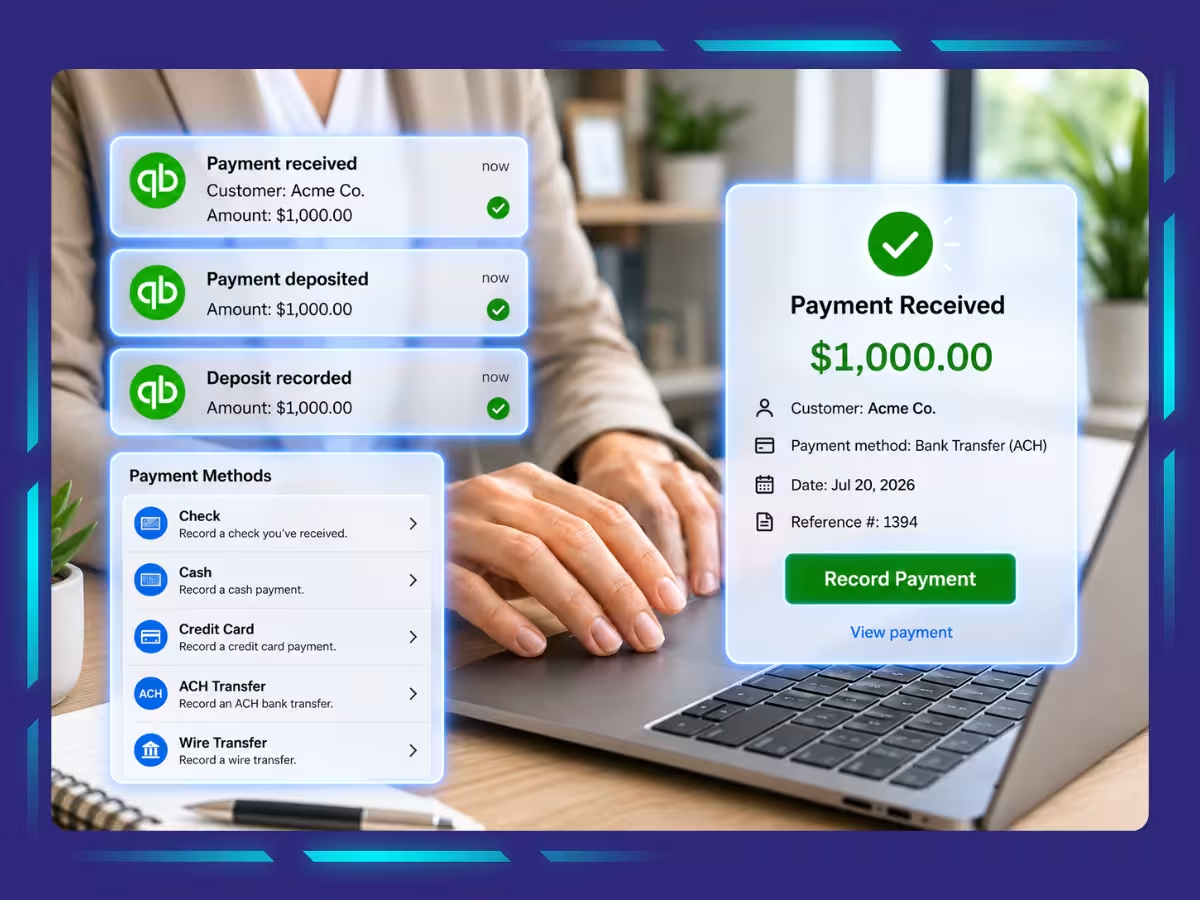
QuickBooks automation features include the automatic handling of repetitive accounting tasks such as transaction categorization, invoicing, payroll, expense tracking, and reporting. It helps reduce manual work, improve accuracy, and help businesses manage finances more efficiently.
1. Faster Transaction Categorization
Automating transaction categorization can save you tonnes of hours. QuickBooks Online automation reduces manual data entry and helps maintain accurate books with less effort.
2. Recurring Transactions for Invoices, Bills, and Expenses
Instead of creating the same entries repeatedly, you can use QuickBooks recurring transactions setup to automatically generate invoices, bills, and expenses on a schedule.
3. Automated Invoice Reminders
QuickBooks automated invoice reminders help you follow up on unpaid invoices without manual emails. You get paid faster while maintaining professional communication.
4. Smart Categorization
QuickBooks auto-categorization learns from past transactions and recommend categories. This AI-powered accounting capability helps reduce errors and speeds up bookkeeping reviews.
5. Expense Auto-Capture
Take a picture of a receipt, and QuickBooks can extract key details automatically. This feature eliminates manual expense entry, improves recordkeeping, and keeps supporting documents organized.
6. Payroll Automation
Payroll automation helps calculate wages, deductions, and taxes automatically. It reduces administrative workload while helping businesses stay on top of payroll compliance requirements, such as W-2, W-4, Form 940 and 941.
7. Automated Bill Pay
You can schedule vendor payments in advance and automate recurring bills. This accounting workflow automation in QuickBooks helps avoid missed due dates and simplifies accounts payable management.
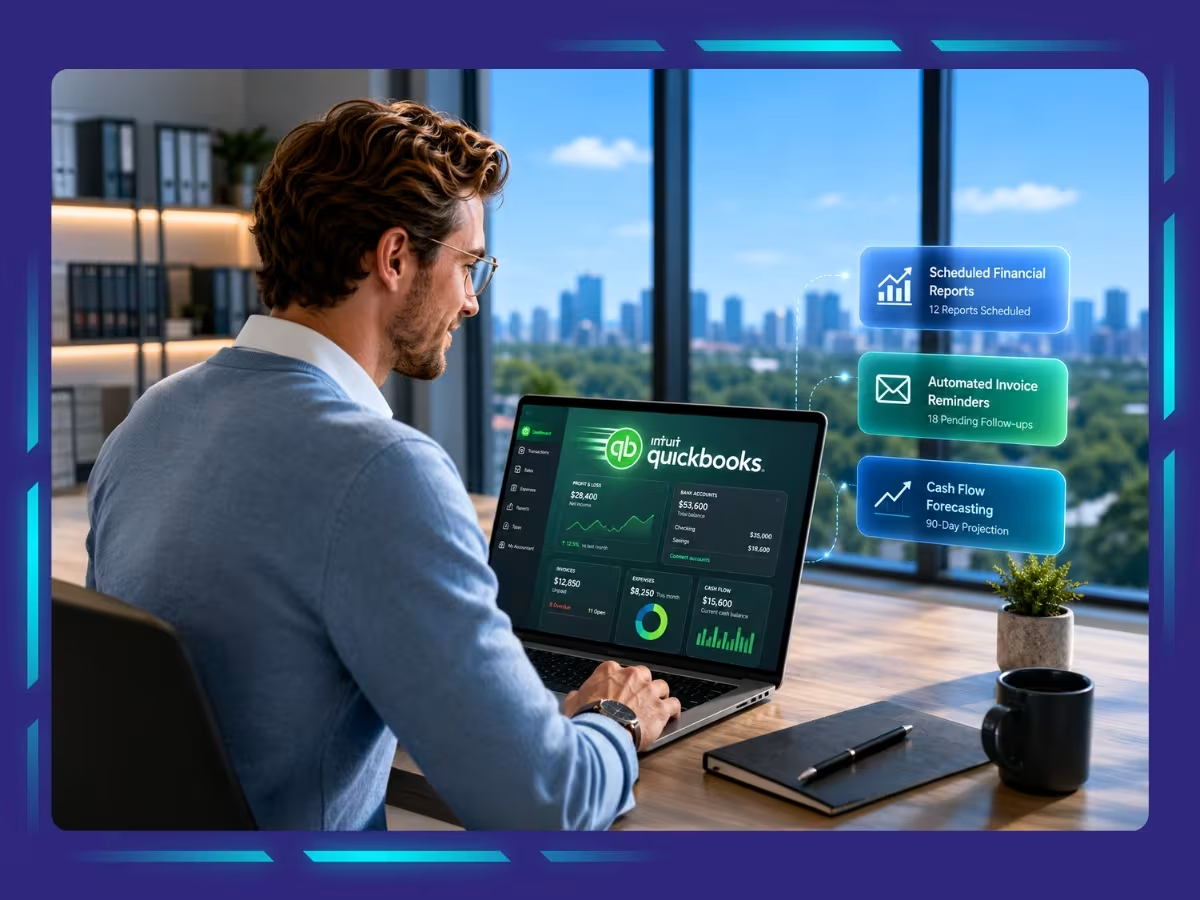
8. Financial Reports Delivered Automatically
Rather than generating reports manually, QuickBooks can automatically create and send financial reports to stakeholders, ensuring you always have up-to-date insights into business performance.
9. Cash Flow Forecasting
QuickBooks can analyze historical financial data and provide cash flow forecasting insights, helping you anticipate shortages, plan spending, and make more informed business decisions.
Before vs After Automation: How Much Time Can QuickBooks Save?
Tasks like categorizing transactions, sending invoice reminders, entering expenses, and generating reports can quietly consume more hours every week than you would like it too. By using QuickBooks automation features, much of that work can run automatically, allowing you to spend more time reviewing insights instead of entering data.
With QuickBooks Online automation tools handling routine accounting tasks, you’re no longer spending hours on manual bookkeeping. Instead, you can focus on reviewing exceptions, monitoring cash flow, and making better business decisions while the system manages repetitive financial workflows in the background.
Here’s a table highlighting how QuickBooks automation helps streamline processes.
| Task | Before Automation (Manual) | After Automation (QuickBooks) |
|---|---|---|
| Transaction Categorization | Manually reviewing bank transactions, assigning expense categories, and verifying sales tax treatment for every transaction. | Bank feeds and automation rules categorize recurring transactions and apply consistent coding automatically. |
| Invoice Follow-Ups | Tracking overdue invoices manually and sending individual payment reminder emails. | Automated payment reminders and recurring invoice workflows reduce collection efforts. |
| Payroll Processing | Calculating wages, retirement contributions, federal income tax withholding, and processing payroll manually. | Automated payroll calculations, pay runs, and employee record management streamline payroll tasks. |
| Expense Entry & Receipt Management | Manually entering expenses, uploading receipts, and matching transactions with bank records. | Receipt capture tools and bank feeds automatically record and match expenses. |
| Financial Reporting | Exporting data to spreadsheets and manually compiling financial reports. | Real-time dashboards and automated reports provide instant access to business performance metrics. |
| Vendor Bill Scheduling | Tracking supplier due dates manually and scheduling payments individually. | Automated bill tracking, reminders, and payment scheduling improve accounts payable management. |
How to Automate Accounting with QuickBooks Online: A Step-by-Step Framework
The easiest way to automate accounting with QuickBooks Online is to start with repetitive tasks that consume the most time. By setting up a few core automations, you can reduce manual bookkeeping, improve accuracy, and create a more efficient accounting workflow.

Step 1: Connect Bank Accounts
Link your business bank accounts and credit cards to QuickBooks Online. Once connected, transactions automatically flow into the system, eliminating the need for manual imports and creating the foundation for further automation.
Step 2: Create Bank Rules
Set up bank rules to automatically categorize recurring transactions. For example, software subscriptions, utility payments, and vendor charges can be assigned to the correct expense categories without manual review.
Step 3: Set Up Recurring Transactions
Use the recurring transactions setup feature to automate invoices, bills, and regular expenses. This ensures routine entries are created on schedule while reducing repetitive data entry.
Step 4: Enable Invoice Reminders
Turn on QuickBooks automated invoice reminders to automatically follow up on outstanding payments. Consistent reminders help improve collection rates without requiring manual emails or phone calls.
Step 5: Automate Payroll
Configure payroll automation to handle employee payments, tax calculations, deductions, and filing requirements. This reduces administration while helping maintain accuracy and payroll compliance.
Step 6: Schedule Reports
Set financial reports to generate and deliver automatically. Scheduled reporting provides regular visibility into revenue, expenses, profitability, and cash flow without requiring manual report creation each week or month.
Work Less on Bookkeeping and More on Growing Your Business
QuickBooks automation features do more than save time, they help create a more reliable, scalable accounting process. By automating transaction categorization, recurring invoices, payroll, expense tracking, reporting, and cash flow monitoring, businesses can significantly reduce manual work while improving financial accuracy.
However, automation delivers the best results when it’s configured correctly and aligned with your business processes. That’s where Whiz Consulting can help. Whether you’re implementing QuickBooks Online for the first time or optimizing existing workflows, we help businesses set up automation, streamline financial operations, and get more value from their systems with our QuickBooks accounting services.

Get customized plan that supports your growth

Have questions in mind? Find answers here...
QuickBooks Online can automate many routine accounting tasks, including transaction categorization, recurring invoices and bills, invoice reminders, expense tracking, receipt capture, payroll processing, vendor payments, bank reconciliation, financial reporting, and cash flow forecasting.
Yes. QuickBooks can automatically categorize transactions using bank rules and smart categorization features. As the system learns from your past bookkeeping behavior, it can suggest categories for similar transactions, helping reduce manual data entry and improve consistency.
Recurring transactions automatically create invoices, bills, expenses, or journal entries on a schedule. Bank rules, on the other hand, automatically categorize imported bank transactions based on predefined criteria.
To enable automatic invoice reminders, navigate to Settings, select Sales, and locate the Reminders section. From there, you can choose when reminders should be sent before or after an invoice due date. QuickBooks will then automatically email customers according to your selected schedule.
The exact savings depend on transaction volume and business complexity, but many small businesses reduce bookkeeping work.
Thousands of business owners trust Whiz to manage their account
Let us take care of your books and make this financial year a good one.