

In This Blog Post
Share This Article
- Last Updated: Jul 4, 2026
- 🔊 Listen
TL;DR
- Record payments through Receive Payment to update invoices and reduce accounts receivable automatically.
- Apply payments to the correct invoices to maintain accurate customer balances and payment history.
- Use Undeposited Funds when grouping payments before creating a bank deposit.
- Match bank-feed transactions to existing payments to prevent duplicate entries and reconciliation issues.
To receive payments in QuickBooks Online, create an invoice, open the Receive Payment window, select the customer, enter the payment details, apply the payment to the correct invoice, and save the transaction. QuickBooks then updates the invoice status, reduces accounts receivable, and records the payment for future bank deposit matching.
QuickBooks Online makes payment recording straightforward when you follow the correct workflow. Whether you’re receiving a full payment, a partial payment, or matching transactions from your bank feed, understanding the process helps keep your books accurate and your customer records up to date.
In this guide, you’ll learn how to receive payments in QuickBooks Online, apply payments to invoices, work with Undeposited Funds, record bank deposits, and match payments with downloaded bank transactions.

Work Smarter with QuickBooks
Reduce Errors. Save Time. Simplify Accounting.
Before You Record a Customer Payment in QuickBooks Online
These quick checks help prevent duplicate entries, incorrect balances, and bank reconciliation issues later. They also support healthier cash flow management, which is critical since, according to QuickBooks’ Small Business Late Payment Report, businesses heavily impacted by overdue invoices are more than 1.4 times more likely to report cash flow struggles.
Check for Existing Invoices
Make sure the invoice for which you are receiving payment has already been created, is still open, and reflects the correct outstanding balance. If the customer paid in advance or paid more than the amount due, it is generally best to record the payment initially as a prepayment or unapplied credit.
Verify Customer and Payment Details
Determine the exact payment method used by the customer (such as Check, Cash, Credit Card, ACH, or Wire Transfer). Keeping these details readily available helps streamline the deposit and reconciliation process, particularly when tracking check numbers or transaction IDs.
Understand the Role of Undeposited Funds
Undeposited Funds in QuickBooks Online acts as a temporary holding account for customer payments before they are grouped into a bank deposit. Understanding this step helps streamline QuickBooks Online payment processing and bank deposit recording.
How to Receive Payments in QuickBooks Online?
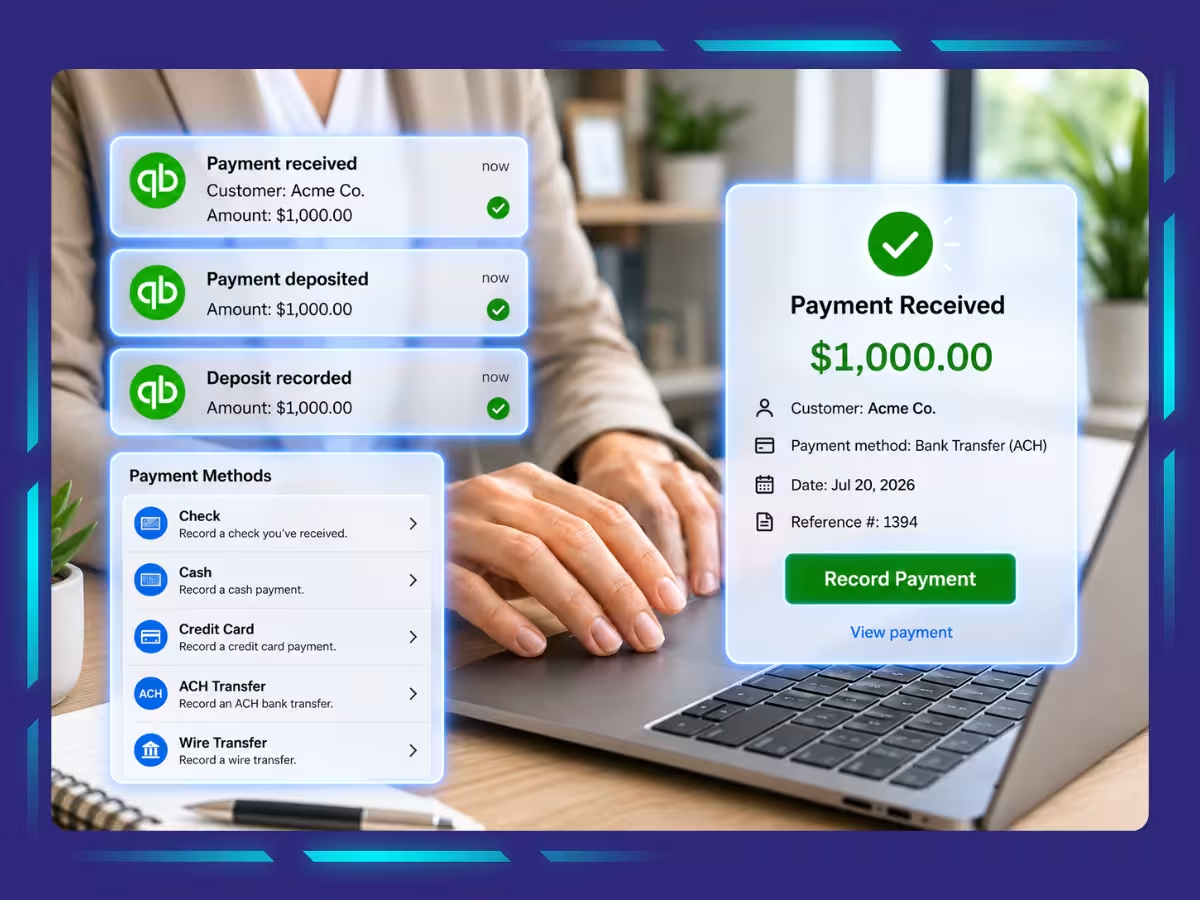
To receive payments in QuickBooks Online, open the Receive payment window, select the customer, enter the payment details, apply the payment to the correct invoice, and save the transaction. Following these steps ensures accurate invoice payment tracking and keeps your accounts receivable records up to date.
Step 1: Open the Receive Payment Window
From the QuickBooks Online dashboard, click + Create and select Receive payment. This is where you’ll begin the QuickBooks Online payment processing steps and link customer payments to outstanding invoices.
Step 2: Select the Customer
Choose the customer who made the payment from the Customer dropdown menu. QuickBooks will automatically display any open invoices associated with that customer, making it easier to record customer payment in QuickBooks Online accurately.
Step 3: Enter the Payment Information
Enter the payment amount, payment date, payment method, and reference number if applicable. Review the details carefully to ensure your payment records, customer balances, and reporting remain accurate.
Step 4: Apply the Payment to the Correct Invoice
Select the invoice you want to pay from the list of open transactions. This step allows you to apply payment to invoice QuickBooks Online records correctly and ensures the invoice status updates based on the amount received.
Step 5: Save and Record the Payment
After reviewing all information, click Record and close. QuickBooks will update the invoice, reduce the customer’s outstanding balance, and record the payment for future bank deposit recording or bank feed matching.
How to Match a Payment to an Invoice Using Bank Feeds?
To match a payment to an invoice in QuickBooks Online, locate the downloaded bank transaction and link it to an existing customer payment. This prevents duplicate records and keeps your invoice payment tracking and bank reconciliation accurate.

1. Finding Downloaded Transactions
Go to Transactions > Bank Transactions and review newly imported bank activity. Locate the customer payment you received and confirm that the amount, date, and payment details match your records before proceeding.
2. Matching Existing Customer Payments
Select the downloaded transaction and click Match if QuickBooks suggests an existing payment. This connects the bank transaction to the customer payment you previously recorded, helping you match payment to invoice QuickBooks records without creating a new transaction.
3. Avoiding Duplicate Entries
Always check whether a customer payment has already been recorded before adding a bank transaction. Creating a new payment instead of matching an existing one can duplicate income, distort accounts receivable balances, and cause reconciliation issues later.
Keep Your Payments in Sync with Expert QuickBooks Accounting Service Provider
Learning how to receive payments in QuickBooks Online helps you do more than close invoices. When payments are recorded correctly, customer balances stay accurate, accounts receivable remains up to date, and bank reconciliation becomes much easier.
As your business grows, managing payments manually can become time-consuming. At Whiz Consulting, we help businesses simplify workflows, reduce bookkeeping errors, and maintain accurate financial records with our QuickBooks accounting services, so you can spend less time fixing transactions and more time focusing on business.

Get customized plan that supports your growth

Have questions in mind? Find answers here...
Receiving a payment in QuickBooks Online means recording money received from a customer and linking it to an invoice. This updates invoice status, reduces accounts receivable, and keeps customer balances accurate.
To accept payment in QuickBooks Online, open Receive Payment, select the customer, enter payment details, choose the invoice, and save the transaction to update records automatically.
To record a partial payment in QB Online, enter the amount received and select the invoice. QuickBooks updates the remaining balance and keeps the invoice partially open.
Undeposited Funds temporarily stores customer payments before they’re grouped into a bank deposit and transferred to your bank account.
Yes, you can edit a recorded customer payment. To do so, open the payment transaction, make the necessary changes, and save to update associated invoices and balances.
Thousands of business owners trust Whiz to manage their account
Let us take care of your books and make this financial year a good one.