


In This Blog Post
Share This Article
- Last Updated: Sep 1, 2026
- 🔊 Listen
TL;DR
- Business central accounting setup directly impacts reporting accuracy, compliance, and scalability.
- Choosing the right company setup structure helps avoid future rework and operational issues.
- Core accounting configurations must be completed before posting transactions.
- Assisted Setup simplifies implementation but still requires accounting expertise and planning.
- Pre-go-live validation helps identify setup errors before live operations begin.
- Using a Sandbox environment reduces risk during implementation and testing.
- US GAAP-aligned configurations support accurate and compliant financial reporting.
- Security permissions and approval workflows should be configured from the start.
- A well-structured setup improves automation and shortens month-end close cycles.
Setting up a new company in Microsoft Dynamics 365 Business Central is where everything begins. When businesses set up a new company in Business Central, it is the moment their financial structure takes shape, and their systems start working for them, not against them. This step goes far beyond entering basic company details. It defines how transactions flow, how reports are generated, and how confidently businesses can make decisions as they grow.
From configuring the chart of accounts and fiscal periods to setting up posting groups, taxes, and user access, every choice made during setup has a long-term impact. A thoughtful setup keeps your books clean, your reporting reliable, and your operations scalable. In this blog we’ll break down how to set up a new company in Business Central with clarity and purpose, so you start on solid ground and avoid costly fixes later.

Smarter Setup. Stronger Results.
Configure Business Central for Lasting Financial Success
Setting Up a New Company Environment in Business Central
Setting up a new company in Microsoft Dynamics 365 Business Central is where business central accounting becomes operational. Before transactions, reports, or workflows can run, a clear understanding of Business Central and the right environment, company structure, and core settings must be established. This section outlines how to create a new company, select the appropriate setup option, and prepare the system for accurate posting, reporting, and controlled day-to-day financial operations.
Step 1: Open Business Central
Log in to Microsoft Dynamics 365 Business Central using your account. Ensure you are in the correct environment (Sandbox or Production).
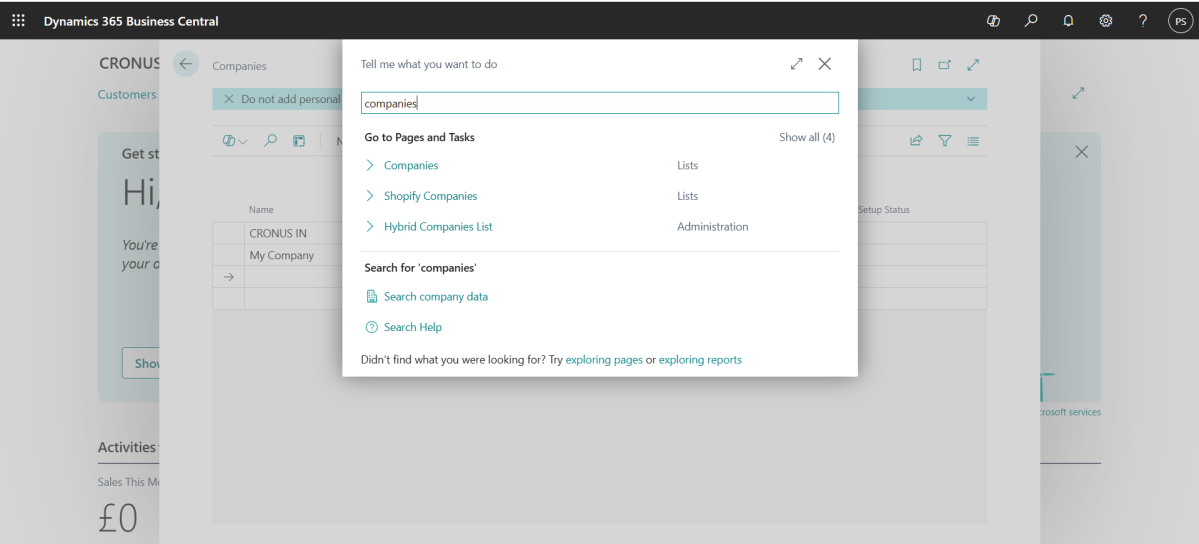
Step 2: Access the Companies List
Click on Tell Me (Search) or press Alt + Q.
- Type “Companies”.
- Select Companies (list) from the dropdown.
- This opens the Companies List Page, where all existing companies are displayed.
Step 3: Create a New Company
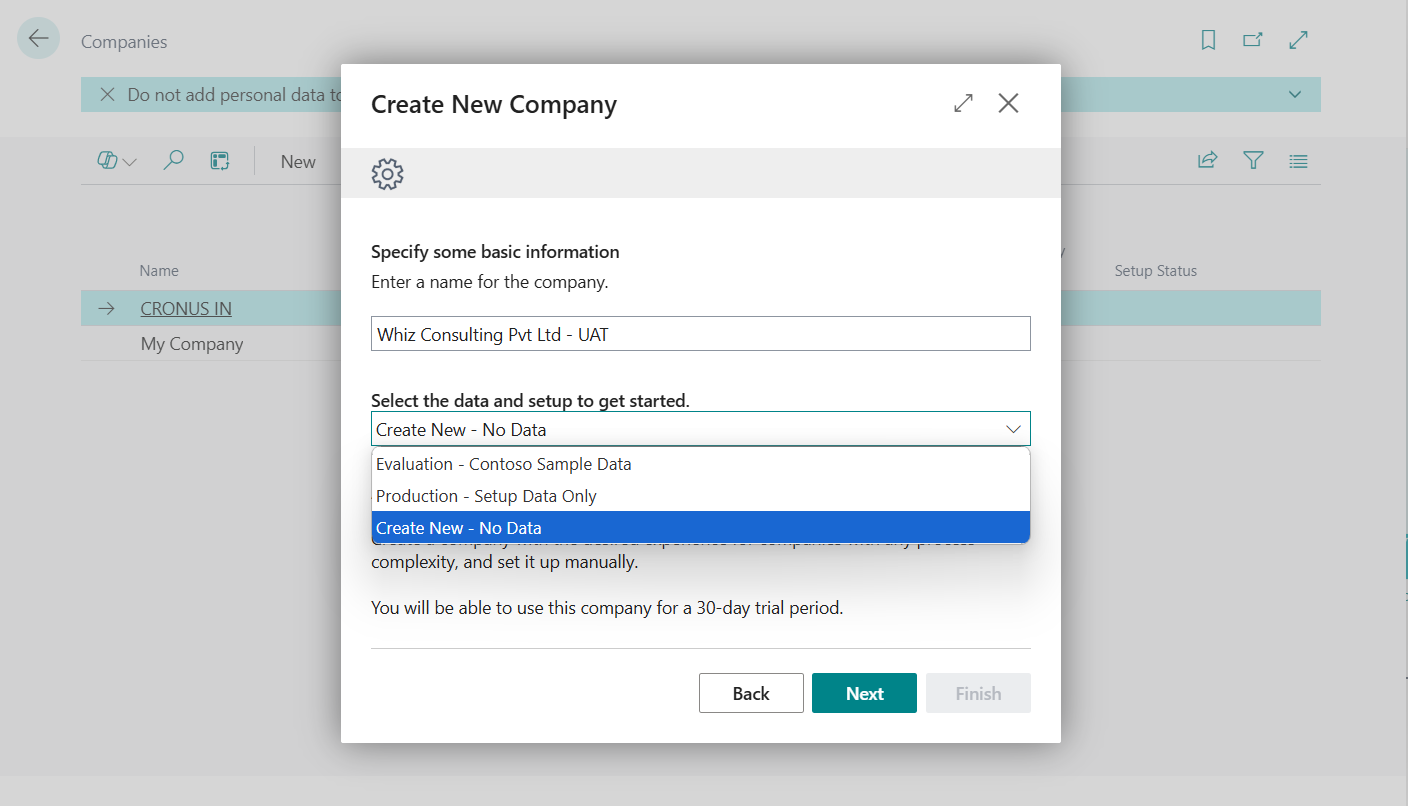
- On the Companies list page, click New.
- Select Create New Company and click on Next
- You will be presented with three creation options:
Option 1 – Evaluation – (Contoso Sample Data): Best for demos, learning, and training with preloaded sample data.
Option 2 – Production (Setup Data Only): Recommended for live use with system setup ready for real business data.
Option 3 – Create New (No Data): Use only for a highly customized accounting structure from scratch.
Select the option that best suits your requirements
Step 4: Enter Basic Company Information
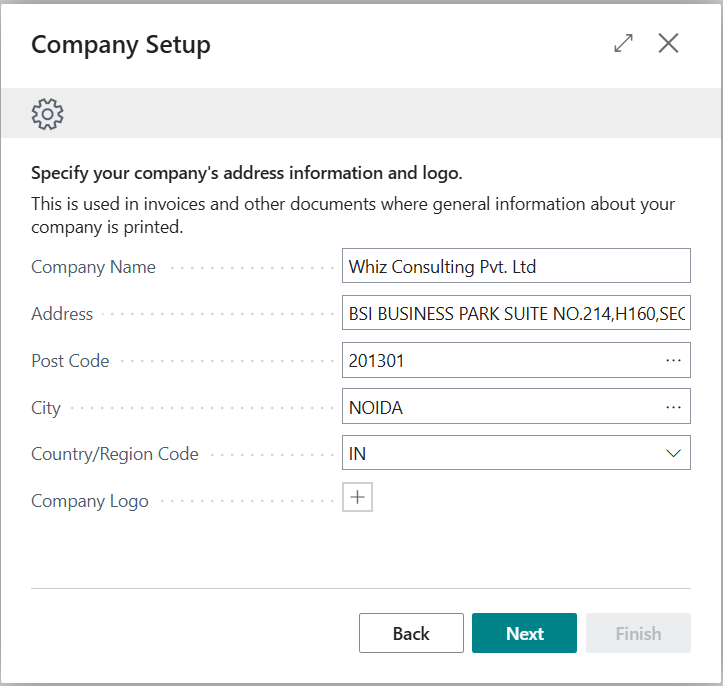
Fill in the necessary fields:
- Company Name
- Display Name
- Country/Region
- Address
- Tax Registration No.
- Language
- Currency
- Click OK or Finish to create the company.
Step 5: Open the Newly Created Company
- Once the new company appears in the list:
- Click the arrow (→) beside the company name.
- Business Central will switch to the new company environment
Step 6: Run the Initial Assisted Setup (Optional)
- After entering the new company:
- Search for “Assisted Setup”.
- Use BC’s guided wizards for:
- Chart of Accounts template
- VAT/GST setup
- Opening balances
- Bank setup
- Approval workflows
This step is optional but helpful for first-time implementations.
Step 7: Complete Mandatory Configuration
Before any transactions can be posted, perform the following configurations:
- Core system & accounting setup
- Posting and tax configuration
- Financial structure setup
- Master data setup
- Security and controls
- Migration and opening balances
- Transactions validation
Step 8: Validate the Company Setup (Pre-Go-Live Review)
Before going live:
- Confirm posting without errors
- Review financial statements
- Validate audit logs
- Ensure user access is correct
- Test your workflows (Sales, Purchase, Approvals)
Only after validation should the company be marked as ready for production.
Step 9: Move Setup to Production (If Initially Done in Sandbox)
Use any of the following migration methods:
- Copy Company
- Configuration Packages
- Rapid Start / Excel Migration
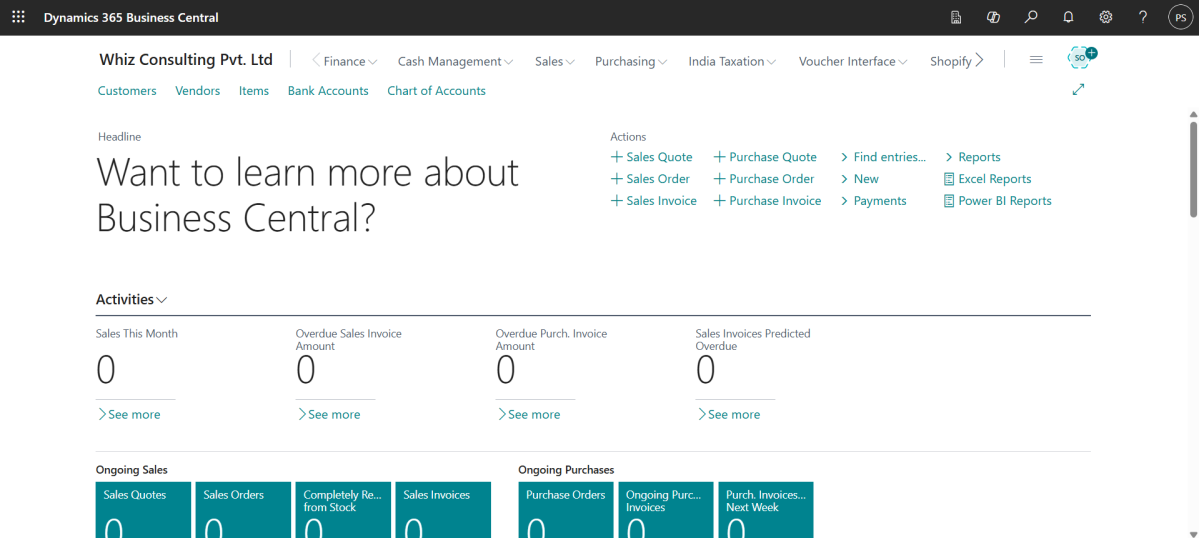
The real work begins after the company is created, when configuration and setup must be performed to allow posting, reporting, and day-to-day transactions.
Must-Do Checklist for New US Companies in Business Central
Before working through the month-end checklist in Business Central, here is a must-do checklist covering the key steps required to complete the setup of new companies in Business Central:
| Area | Priority |
|---|---|
| Accounting Periods | Critical |
| General Ledger Setup | Critical |
| Number Series | Critical |
| Posting Groups | Critical |
| Chart of Accounts (US GAAP Aligned) | Critical |
| Dimensions | Mandatory |
| Sales Tax Setup | Mandatory |
| Banks | Mandatory |
| Customer and Vendors | Mandatory |
| Permission and User Roles | Mandatory |
| Configuration Packages | Mandatory |
| Opening Balances | Mandatory |
| Inventory Posting | Conditional |
| Fixed Asset Setup | Mandatory |
| Approval Workflows | Recommended |
| Change log | Recommended |
| Email Configuration | Recommended |
| Sales and Purchase Settings | Mandatory |
Set Up Your Company the Right Way with a Business Central Accounting Expert
Setting up your company in Business Central sets the tone for everything that follows. A proper set up new company in Business Central process shapes how accurate your books are, how dependable your reports remain, and how easily your business can scale.
A well-executed Business Central setup directly impacts accuracy of US GAAP financial reporting, speed and reliability of month-end close, audit readiness and internal controls, and scalability across subsidiaries and business units. With the right structure in place, finance teams avoid rework, reduce manual adjustments, and gain confidence in their numbers from day one.
At Whiz Consulting, our Business Central accounting services focus on structure, not shortcuts. We design charts of accounts, posting structures, tax configurations, user roles, and reporting frameworks aligned to US accounting standards, ensuring your system supports decision-making, compliance, and growth. The result is accurate reporting, smoother operations, and a system that continues to support your business as it grows.

Get customized plan that supports your growth

Have questions in mind? Find answers here...
Business Central company setup is the process of configuring Microsoft Dynamics 365 Business Central for a specific business entity. It includes setting up the chart of accounts, posting groups, tax settings, dimensions, fiscal periods, bank accounts, users, and approval workflows to support accurate accounting and reporting operations.
To configure Business Central from scratch, businesses typically start by creating the company profile, setting up the chart of accounts, configuring posting groups, defining dimensions, enabling tax settings, importing master data, and establishing user permissions. Testing workflows and validating reports before going live are also critical steps in the setup process.
A Business Central setup checklist for a new company usually includes company creation, chart of accounts setup, posting groups, dimensions, sales tax configuration, bank account setup, customer and vendor master data, approval workflows, security permissions, and financial report testing before go-live.
The steps to create a company in Dynamics 365 Business Central include opening the Companies page, selecting “New,” choosing a setup method, entering company details, configuring accounting settings, assigning users and permissions, and validating the setup through testing before processing live transactions.
Thousands of business owners trust Whiz to manage their account
Let us take care of your books and make this financial year a good one.