



In This Blog Post
Share This Article
- Published: Jan 13, 2026
- Last Updated: Jan 15, 2026
- 🔊 Listen
Quick Reads
- Company setup in Business Central defines posting accuracy, reporting quality, and long-term scalability.
- Selecting the right company creation option prevents rework and structural issues later.
- Core configurations must be completed before any transactions can be posted.
- Assisted Setup speeds implementation but still requires proper accounting alignment.
- Pre-go-live validation helps catch errors before they impact live operations.
- Using Sandbox first reduces risk when moving to a Production environment.
- US GAAP-aligned structures are essential for compliant and reliable reporting.
- Security roles and approval controls should be established from day one.
- A structured setup shortens month-end close and reduces manual adjustments.
Setting up a new company in Microsoft Dynamics 365 Business Central is where everything begins. It is the moment your financial structure takes shape, and your systems start working for you, not against you. This step goes far beyond entering basic company details. It defines how transactions flow, how reports are generated, and how confidently you can make decisions as the businesses grow.
From configuring the chart of accounts and fiscal periods to setting up posting groups, taxes, and user access, every choice made during setup has a long-term impact. A thoughtful setup keeps your books clean, your reporting reliable, and your operations scalable. In this blog we’ll break down how to set up a new company in Business Central with clarity and purpose, so you start on solid ground and avoid costly fixes later.

MS Dynamics, Refined
Automation Aligned With Your Accounting Strategy
Setting Up a New Company Environment in Business Central
Setting up a new company in Microsoft Dynamics 365 Business Central is where business central accounting becomes operational. Before transactions, reports, or workflows can run, the right environment, company structure, and core settings must be established. This section outlines how to create a new company, select the appropriate setup option, and prepare the system for accurate posting, reporting, and controlled day-to-day financial operations.
Step 1: Open Business Central:
Log in to Microsoft Dynamics 365 Business Central using your account. Ensure you are in the correct environment (Sandbox or Production).
Step 2: Access the Companies List:
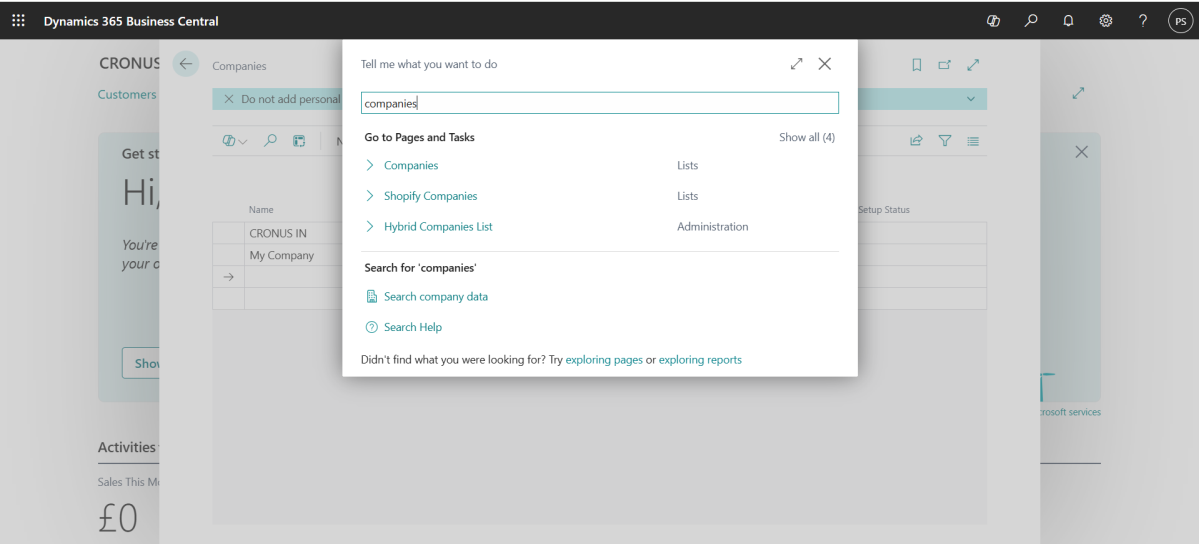
Click on Tell Me (Search) or press Alt + Q.
- Type “Companies”.
- Select Companies (list) from the dropdown.
- This opens the Companies List Page, where all existing companies are displayed.
Step 3: Create a New Company
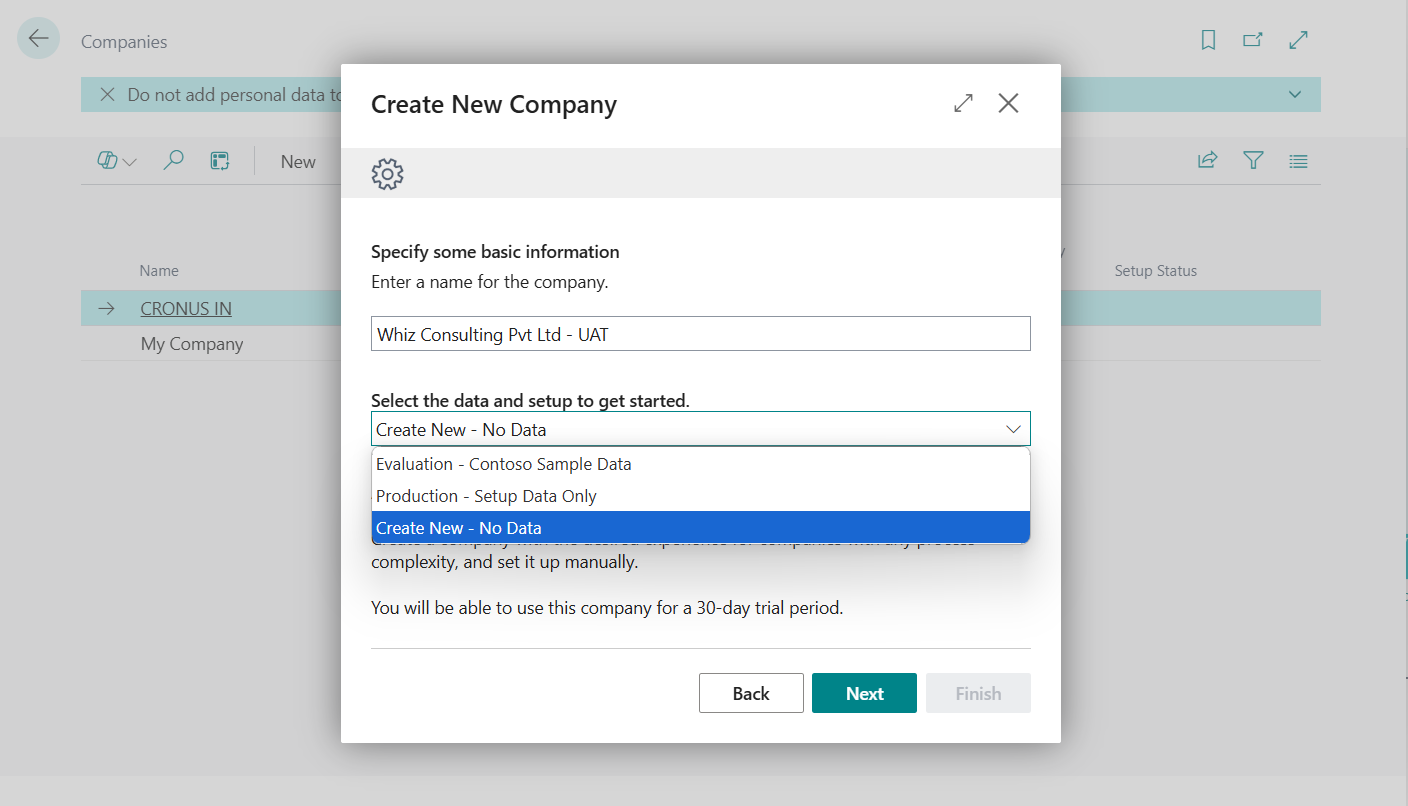
- On the Companies list page, click New.
- Select Create New Company and click on Next
- You will be presented with three creation options:
Option 1 – Evaluation – (Contoso Sample Data): Best for demos, learning, and training with preloaded sample data.
Option 2 – Production (Setup Data Only): Recommended for live use with system setup ready for real business data.
Option 3 – Create New (No Data) Use only for a highly customized accounting structure from scratch.
Select the option that best suits your requirements
Step 4: Enter Basic Company Information
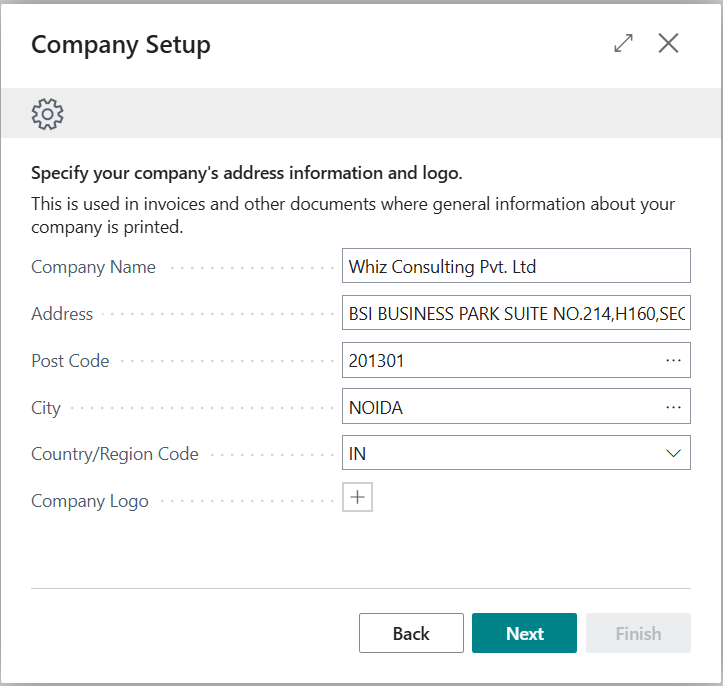
Fill in the necessary fields:
- Company Name
- Display Name
- Country/Region
- Address
- Tax Registration No.
- Language
- Currency
- Click OK or Finish to create the company.
Step 5: Open the Newly Created Company
- Once the new company appears in the list:
- Click the arrow (→) beside the company name.
- Business Central will switch to the new company environment
Step 6: Run the Initial Assisted Setup (Optional)
- After entering the new company:
- Search for “Assisted Setup”.
- Use BC’s guided wizards for:
- Chart of Accounts template
- VAT/GST setup
- Opening balances
- Bank setup
- Approval workflows
- This step is optional but helpful for first-time implementations.

Step 7: Complete Mandatory Configuration
Before any transactions can be posted, perform the following configurations:
- Core system & accounting setup
- Posting and tax configuration
- Financial structure setup
- Master data setup
- Security and controls
- Migration and opening balances
- Transactions validation
Step 8: Validate the Company Setup (Pre-Go-Live Review)
Before going live:
- Confirm posting without errors
- Review financial statements
- Validate audit logs
- Ensure user access is correct
- Test your workflows (Sales, Purchase, Approvals)
- Only after validation should the company be marked as ready for production.
Step 9: Move Setup to Production (If Initially Done in Sandbox)
Use any of the following migration methods:
- Copy Company
- Configuration Packages
- Rapid Start / Excel Migration
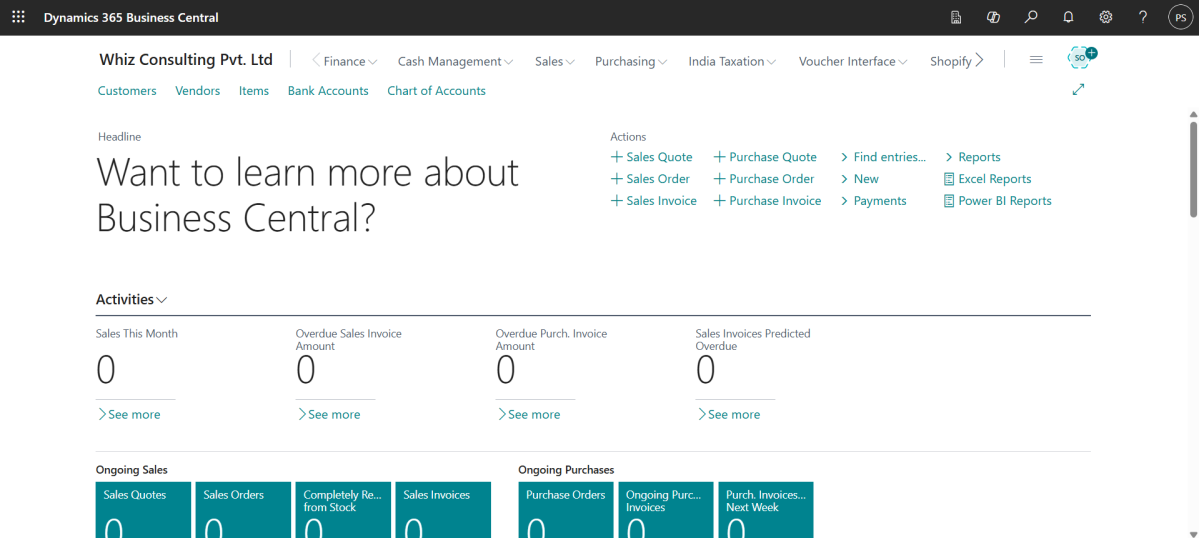
The real work begins after the company is created, when configuration and setup must be performed to allow posting, reporting, and day-to-day transactions.
Below is a Must-do checklist required for completing the setup of New Companies in Business Central
Must-Do Checklist for New Companies in Business Central (US Context)
| Area | Priority |
|---|---|
| Accounting Periods | Critical |
| General Ledger Setup | Critical |
| Number Series | Critical |
| Posting Groups | Critical |
| Chart of Accounts (US GAAP Aligned) | Critical |
| Dimensions | Mandatory |
| Sales Tax Setup | Mandatory |
| Banks | Mandatory |
| Customer and Vendors | Mandatory |
| Permission and User Roles | Mandatory |
| Configuration Packages | Mandatory |
| Opening Balances | Mandatory |
| Inventory Posting | Conditional |
| Fixed Asset Setup | Mandatory |
| Approval Workflows | Recommended |
| Change log | Recommended |
| Email Configuration | Recommended |
| Sales and Purchase Settings | Mandatory |
Set Up Your Company the Right Way with a Business Central Accounting Expert
Setting up your company in Business Central sets the tone for everything that follows. It shapes how accurate your books are, how dependable your reports remain, and how easily your business can scale. A well-executed Business Central setup directly impacts-Accuracy of US GAAP financial reporting, speed and reliability of month-end close, audit readiness and internal controls, scalability across subsidiaries and business units. With the right structure in place, finance teams avoid rework, reduce manual adjustments, and gain confidence in their numbers from day one.
At Whiz Consulting, our Business Central accounting services focus on structure, not shortcuts. We design charts of accounts, posting structures, tax configurations, user roles, and reporting frameworks aligned to US accounting standards, ensuring your system supports decision-making, compliance, and growth. The result is accurate reporting, smoother operations, and a system that continues to support your business as it grows.

Get customized plan that supports your growth

Have questions in mind? Find answers here...
Copying to an existing company is usually faster. It carries over chart of accounts, posting groups, dimensions, and setup rules. A blank company is better only if your accounting structure is completely different, or you want a clean rebuild.
Yes. Business Central excels imports and data migration tools for systems like QuickBooks and legacy ERPs. Master data (customers, vendors, items) is usually migrated first, followed by opening balances and historical transactions if required.
Yes. Posting groups are company specific. If you copy an existing company, they come across it automatically. If you create a blank company, posting groups must be set up manually before transactions can be posted.
Use Sandbox for testing, training, and configuration validation. Once everything is confirmed, replicate the setup in Production to avoid data or posting errors.
Yes. Trials allow multiple companies, but all data is deleted once the trial expires unless you convert to a paid subscription.
Yes. The easiest way is to copy an existing company that already has a proven chart of accounts. This ensures consistency across entities and simplifies consolidated reporting.
Yes. Consistent charts of accounts, dimensions, and fiscal calendars make intercompany transactions and consolidation reporting far smoother later.
Yes. Business Central allows consistency across environments (Sandbox, Test, and Production) by using tools such as Copy Company, Configuration Packages, and RapidStart templates. These tools help replicate chart of accounts, posting groups, dimensions, number series, and other core setups. Maintaining shared setup logic across environments ensures predictable behavior, reduces configuration drift, and simplifies testing before production deployment.
Company setup plays a critical role in consolidation and intercompany processes. Consistent charts of accounts, dimensions, fiscal calendars, and posting groups across entities significantly reduce reconciliation effort during consolidation. Proper initial setup also ensures smoother intercompany transactions, accurate elimination of entries, and reliable group-level financial reporting. Poor alignment at the setup stage often leads to manual adjustments, reporting inconsistencies, and increased audit risk later.
Thousands of business owners trust Whiz to manage their account
Let us take care of your books and make this financial year a good one.