

Table of Content
Share This Article
- Last Updated: Nov 2, 2026
- 🔊 Listen
TL;DR
- Zoho Books supports MTD for VAT and Income Tax, with different eligibility and reporting requirements.
- VAT setup in Zoho Books involves configuring registration details, accounting basis, applicable schemes, and HMRC filing permissions.
- Income Tax setup in Zoho Books requires HMRC registration, administrator or agent authorisation, and business verification.
- Businesses can retrieve quarterly obligations, prepare tax updates, and submit tax returns through Zoho Books.
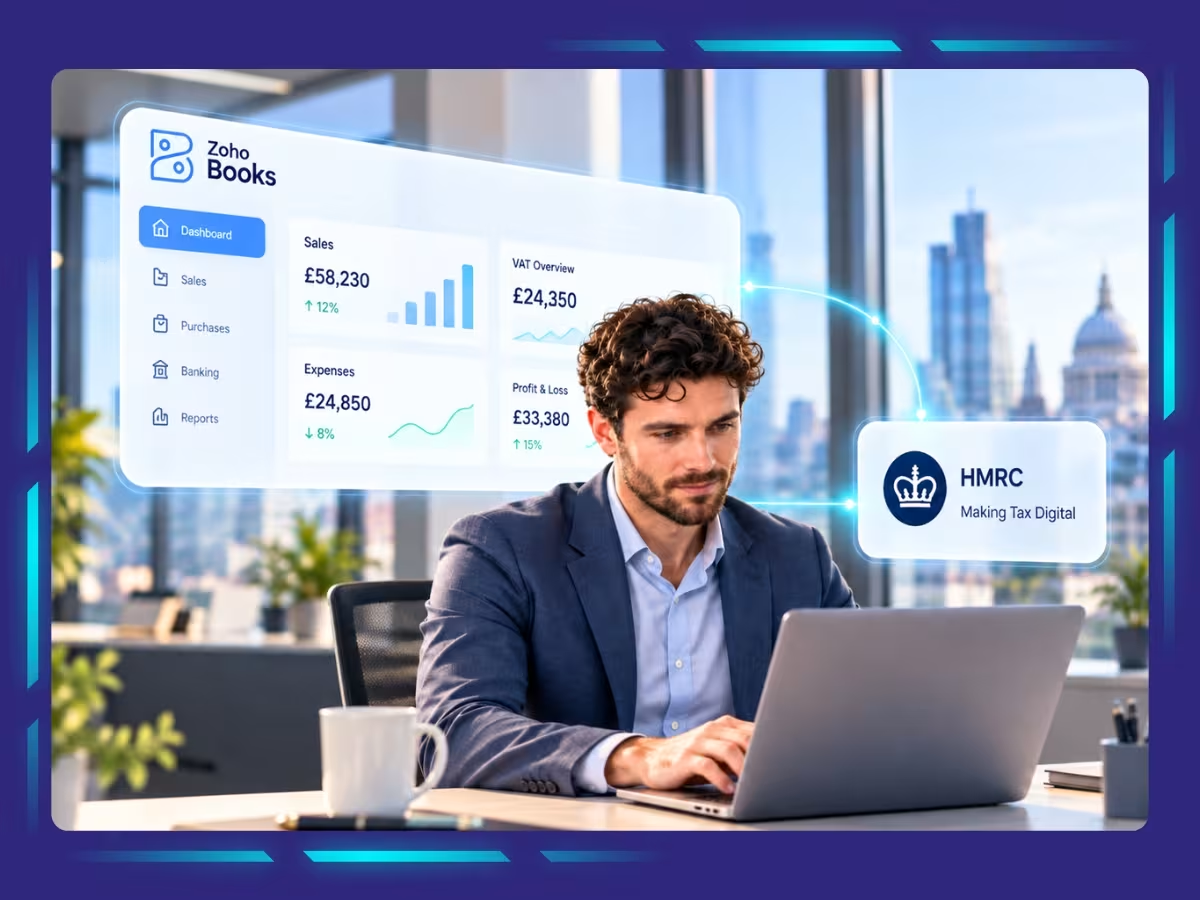
For UK businesses, Making Tax Digital (MTD) brings a more structured approach to tax reporting, making reliable accounting software an important part of staying compliant. Zoho Books offers a range of features designed to support businesses with MTD requirements while keeping their accounting processes straightforward.
Getting started, however, involves configuring your account to use these features effectively. In this blog, we explore the key Making Tax Digital capabilities available in Zoho Books and walk you through the steps to set up your account. You’ll also learn how to use the platform to manage your tax records and meet your reporting obligations.
Get MTD-Ready with Experts
Keep your VAT records ready to file with expert support
What MTD Features Does Zoho Books Offer for UK Businesses?
Zoho Books supports MTD for VAT through direct HMRC filing, digital record-keeping, bank feed reconciliation, and VAT payment tracking. It also offers features that support MTD for VAT and Income Tax, including quarterly updates and end-of-year submissions for eligible users.
These features help UK businesses manage tax reporting and maintain accurate financial records from a single accounting platform.

Key MTD features offered by Zoho Books:
- Direct VAT return submission: Calculate and submit VAT returns directly to HMRC using recorded transactions, reducing manual data transfer during quarterly or periodic filing
- Digital record-keeping: Store sales, purchases, and expense records digitally, and categorise transactions for VAT reporting
- Bank feeds and transaction matching: Import bank transactions and match them with accounting entries to reduce manual data entry and identify missing or duplicated transactions before filing
- VAT payment and reclaim tracking: Record VAT payments and track VAT balances in your accounts, and review input VAT recovery against the applicable VAT rules
- MTD for Income Tax support: Maintain digital records of sole traders and landlords, and submit quarterly updates and complete the applicable year-end reporting steps
- Accountant and agent access: Allow authorised accountants and bookkeepers to review records and manage filings on a client’s behalf
How to Set Up Zoho Books Making Tax Digital for VAT
Setting up Zoho Books for Making Tax Digital for VAT involves entering your VAT registration details, enabling direct HMRC filing, and authorising the software to submit returns. Once configured, you can generate VAT returns, review the figures, and submit them from Zoho Books itself.
Step 1: Configure VAT Settings
Before enabling MTD filing, enter your business’s VAT details in Zoho Books.
- Click Settings in the top-right corner
- Under Taxes & Compliance, select Taxes, then VAT Settings
- Set “Is your business registered for VAT?” to Yes
- Enter the country code and nine-digit VAT registration number shown on your HMRC VAT registration certificate
- Select your VAT Accounting Basis:
- Accrual Basis: VAT is calculated using the invoice date
- Cash Basis: VAT is calculated using the date your customer pays
- Configure any additional VAT options that apply to your business, such as the Flat Rate Scheme or overseas trading settings
- Save your settings
Step 2: Enable Direct VAT Filing with HMRC
Once your VAT settings are configured, enable online VAT filing in Zoho Books.
- Go to Settings → Taxes → VAT Filing Settings
- Select I want to file my VAT returns to HMRC through Zoho Books
- Click Save
Zoho Books will then prompt you to authorise the software with HMRC. You can complete the authorisation immediately or save the settings and authorise later.
Step 3: Authorise Zoho Books with HMRC
Authorisation allows Zoho Books to communicate with HMRC on your behalf when filing VAT returns.
- Select your role in the filing process:
- Organisation administrator: If you manage the organisation’s Zoho Books account
- Agent: If you file VAT returns on behalf of another organisation. Enter your Agent Registration Number (ARN) when requested.
- Read and accept the terms and conditions
- Click Go to HMRC’s Website
- On the HMRC website, click Continue, sign in using your HMRC credentials, and select Grant Authority
- After authorisation, you will be redirected to Zoho Books
If you are an agent, you may also need to request the organisation administrator’s permission within Zoho Books before filing returns.
Step 4: Generate, Review, and Submit VAT Returns
After completing the setup and authorisation, you can prepare and submit VAT returns directly through Zoho Books.
- Generate the return: Open the VAT Filing module from the left navigation menu and click Generate VAT Return. Zoho Books creates a draft return with a summary and detailed tax figures.
- Review the figures: Check the return summary and inspect the transactions behind individual VAT amounts. Make any necessary adjustments before finalising the return.
- Finalise the return: Click Finalise Return after reviewing the details. Confirm the action when prompted.
- Submit to HMRC: Click Submit to HMRC, confirm that the information is accurate, review the amount payable or reclaimable, and submit the return
- Record the payment or reclaim: Once you have paid HMRC or received a VAT refund, use the Unpaid/Unclaimed tab and select Record Payment/Claim to update your records
You can review filed returns and their filing and payment statuses under the All Returns tab.
How to Set Up Zoho Books Making Tax Digital for Income Tax
Set up Zoho Books Making Tax Digital for Income Tax by meeting HMRC’s registration requirements, connecting your organisation to HMRC, and linking the relevant business details. Once connected, you can fetch quarterly submission obligations and submit income tax updates directly through Zoho Books.
Step 1: Check the Prerequisites
Before connecting Zoho Books to HMRC, confirm that your organisation and HMRC account meet the requirements.
- Set your business type: During organisation setup, select Sole Trader or Landlord. If you already use Zoho Books, go to Settings → Organisation → Profile to update your business type
- Create an HMRC online account: You need an HMRC online account to connect Zoho Books. If you do not have one, visit HMRC’s online services page and follow the instructions to create your sign-in details.
- Sign up for MTD for Income Tax: Register with HMRC before submitting income tax updates through Zoho Books
Step 2: Connect Zoho Books to HMRC
Once you have completed the prerequisites, enable MTD for Income Tax in Zoho Books.
- Go to Settings
- Under Taxes & Compliance, select Taxes
- Under Other Taxes, select Income Tax
- Click Connect to HMRC
- In the connection pop-up, select your role:
- Admin: Choose this if you are the business owner submitting income tax updates through Zoho Books
- Agent: Choose this if you are an accountant submitting income tax updates on behalf of a client.
Follow the relevant authorisation process for your role.
Step 3: Complete HMRC Authorisation as an Administrator
If you selected Admin, complete these steps to connect your organisation to HMRC.
- Enter the National Insurance number (NINO) issued by HMRC
- Read and accept the terms and conditions
- Click Continue to HMRC’s Website
- Enter your HMRC credentials and sign in
- After you return to Zoho Books, select the relevant business registered with HMRC
Choose the business according to your income type:
- Sole trader: Select your Self Employed business from the Business Name dropdown
- Landlord: Select your UK Property business
- Sole trader and landlord: Select your Self Employed business, click + Add UK Property, and select your UK Property business
Zoho Books retrieves the corresponding business type and business ID from HMRC using the NINO associated with your account.
If Zoho Books identifies a mismatch between your HMRC business name and your organisation name, click Update Now to correct the organisation details. Verify the business information and click Save to complete the setup.
Step 4: Complete HMRC Authorisation as an Agent
If you are an accountant filing on behalf of a client, select Agent in the connection pop-up and provide the required details.
- Enter your Agent Registration Number (ARN) issued by HMRC
- Enter your client’s National Insurance number
- Enter your client’s business postcode
- Read and accept the required terms and conditions
- Click Continue to HMRC’s Website
- Sign in using the required credentials
After returning to Zoho Books, an authorisation request will appear with Pending status. An email will be sent to your client’s Zoho Books organisation for approval.
You can copy the request link and send it to the administrator manually, check its status using Fetch Status, or cancel the request if necessary.
Once your client approves the request, select their relevant business registered with HMRC. Verify the business details and click Save.
You can then submit income tax updates on your client’s behalf through Zoho Books.
Step 5: Fetch and Submit Income Tax Updates
After connecting Zoho Books to HMRC, you can retrieve your quarterly submission obligations and submit updates directly through the software.
- Go to Filing & Compliance in the left sidebar and select MTD Income Tax
- Click Fetch Obligations From HMRC
- Select the relevant tax year, business, and period type
- Fetch the obligations to view the submission periods returned by HMRC
- Prepare the relevant quarterly updates and submit them to HMRC through Zoho Books
Before fetching obligations or submitting updates, confirm that your MTD for Income Tax setup is complete and your HMRC connection is active.
Comply with VAT easily with the right accounting support
Zoho Books can simplify VAT reporting, but compliance still depends on correct configuration, reliable transaction records, and timely submissions. At Whiz Consulting, we help UK businesses manage bookkeeping, VAT reconciliations, and financial reporting with our Zoho Books accounting services. Our team can help you maintain accurate records, review VAT figures before filing, and address discrepancies before they affect your returns. This gives you greater confidence in your VAT reporting while freeing up time to focus on running your business.

Get customized plan that supports your growth

Have questions in mind? Find answers here...
Yes, Zoho Books supports Making Tax Digital for VAT, allowing eligible VAT-registered businesses to submit returns directly to HMRC. It also supports MTD for Income Tax for eligible businesses.
Zoho Books requires a paid subscription for MTD for VAT. However, eligible sole traders and landlords may access a free plan for MTD for Income Tax.
Configure your VAT registration details in Zoho Books, enable online VAT filing, and authorise the software through HMRC’s website. Once authorised, you can generate, review, and submit VAT returns directly from Zoho Books.
Yes, after completing the VAT setup and HMRC authorisation, you can generate VAT returns, review transaction details, finalise the figures, and submit them directly to HMRC. You can also check filing statuses within Zoho Books.
Incorrect VAT settings can affect transaction calculations and the figures reported on your VAT return. Review your VAT registration number, accounting basis, tax rates, and applicable schemes before filing.
Thousands of business owners trust Whiz to manage their account
Let us take care of your books and make this financial year a good one.




This website uses cookies to improve your experience. You can accept all or reject non-essential cookies.