


Table of Content
Share This Article
- Last Updated: Oct 8, 2026
- 🔊 Listen
TL;DR
- Bank reconciliation errors often begin with setup issues, not the reconciliation process itself.
- Incorrect opening balances can cause persistent differences even when current transactions are accurate.
- Direct posting can bypass reconciliation controls and weaken the bank account audit trail.
- Poorly matched priorities may cause valid transactions to remain unmatched or match incorrectly.
- Incorrect bank statement formats can create missing, duplicated, or failed transaction imports.
- Duplicate, missing, or wrongly posted entries should be corrected before completing reconciliation.
- Finance teams should review posting dates, amounts, and ledger entries systematically when differences appear.
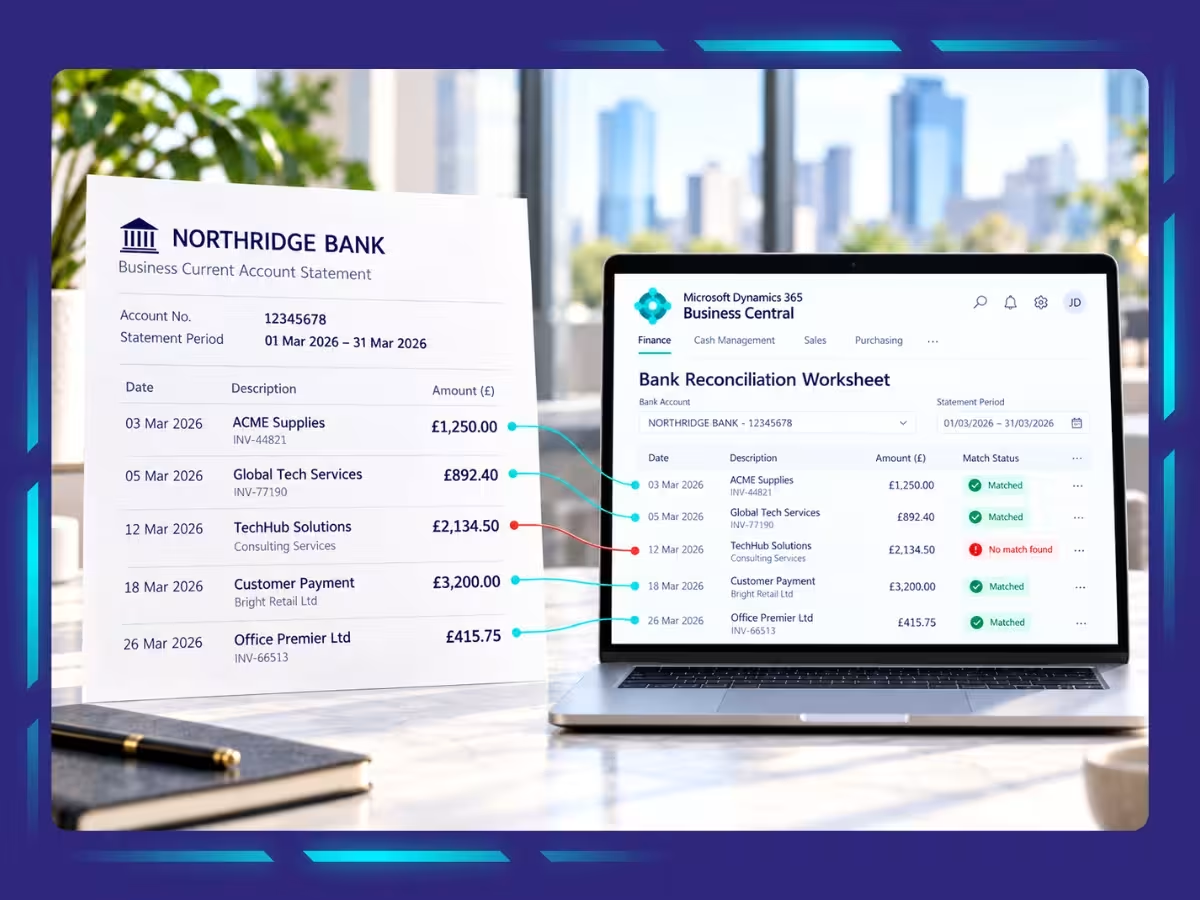
Business Central bank reconciliation errors often stem from setup issues rather than the reconciliation process itself. Incorrect bank account settings, posting groups, opening balances, imported bank transactions, or matching rules can create discrepancies that are difficult to resolve later. For UK businesses, these bank reconciliation errors can slow month-end close, affect cash visibility, and create unnecessary rework for finance teams.
This blog explains the most common Microsoft Dynamics 365 Business Central setup mistakes behind bank reconciliation errors, why they happen, and how to fix them, so reconciliations remain accurate, efficient, and easier to manage.

Build a Cleaner Reconciliation Process
Improve setup, reduce exceptions, and maintain a stronger audit trail.
What Causes Business Central Bank Reconciliation Errors?
Business Central bank reconciliations errors are almost never a data problem on their own. They are a symptom of choices made when the bank account was first set up in the system, long before the first live bank feed was ever connected. A single misconfigured setting can sit unnoticed for month, quietly producing small mismatches that finance teams write off as timing differences, until the gap between the ledger and the bank statements grows too large to explain away. These five configuration gaps account for most of the recurring bank reconciliation errors UK finance teams report:
- Directly posting left switched on for the bank’s G/L account, so transactions can bypass the reconciliation step entirely
- Auto-match priority left at its default, which checks date and description before it checks value
- A live bank feed connected before the account’s opening balance was validated manually
- No dedicated clearing account for unidentified items, so suspense entries pile up unexplained
- Reversals handled as manual refund entries instead of being reversed through the originating journal
What to Do When the Bank Reconciliation Does Not Balance
If a bank reconciliation does not balance, review the opening balance, imported statement lines, ledger entries, unmatched transactions, duplicates, posting dates, and transaction amounts. Once the difference is identified, correct the underlying entry before completing the reconciliation, so the bank reconciliation errors do not carry into later periods. Let’s look at each step.
Step 1: Check the Statement Opening Balance:
Confirm that the opening balance agrees with the closing balance from the previous bank statement or reconciliation. An incorrect starting balance is one of the most common causes of bank reconciliation errors, and it can keep the entire reconciliation out of balance even when current-period transactions are correct.
Step 2: Review Imported Bank Statements Lines
Check that all statement transactions have been imported correctly. Look for missing lines, duplicated transactions, incorrect amounts, or formatting issues that may have affected the import and created bank reconciliation errors.
Step 3: Compare Bank Ledger Entries
Review the corresponding Bank Account Ledger Entries in Business Central. Confirm that payments, receipts, transfers, bank charges, and other transactions have been posted to the correct bank account.
Step 4: Review Unmatched Transactions
Investigate any statement lines or ledger entries that remain unmatched. Differences in transaction dates, references, descriptions, or amounts may prevent Business Central from matching otherwise valid transactions automatically, which often appears as bank reconciliation errors.
Step 5: Check for Duplicate or Missing Entries
Look for transactions recorded twice or transactions appearing on the bank statement but missing from Business Central. Common examples include bank fees, direct debits, standing orders, interest, and duplicated payment postings. Duplicates and omissions are frequent sources of bank reconciliation errors.
Step 6: Review Posting Dates and Amounts
Check whether transactions were posted using the correct date and amount. Timing differences between the bank statement and Business Central can leave legitimate transactions outstanding, while incorrect values can create genuine bank reconciliation errors.
Step 7: Correct the Underlying Entry Before Posting
Once the source of the difference is identified, correct the underlying transaction or setup issue where appropriate before completing the reconciliation. Avoid using unexplained balancing entries simply to make the reconciliation agree, as this can hide bank reconciliation errors and create problems in later accounting periods.
Which Setup Mistakes Trip Up UK Finance Teams Most Often?
A handful of setup mistakes show up again and again in Business Central implementations across UK small and mid-sized businesses. The table below shows what each one looks like day to day, how it creates bank reconciliation errors, and how to correct it.
| Setup mistake | Symptom | Fix |
|---|---|---|
| Direct posting left enabled | Entries bypass the bank reconciliation check, breaking the audit trail | Disable direct posting on the bank account’s G/L bank account No. |
| Auto-match prioritises date and description over value | Wrong-value transactions get matched and cleared incorrectly | Reset the matching priority so the transaction value is checked first |
| No clearing account for unidentified items | Suspense items accumulate unexplained by month-end | Set a dedicated clearing G/L account and clear it weekly, not just at month-end |
| Reversals posted as manual refunds | Incorrect reversal posting triggers an error and interrupts the reconciliation process. | Reverse through the originating journal rather than a manual refund entry |
How Can You Fix and Prevent These Errors?
Clearing up existing errors and preventing new ones both start with the same setup review, run before anything else is touched, so the fix addresses the root cause rather than just this month’s bank reconciliation errors:
- Turn off direct posting on every bank G/L account before reconnecting a feed
- Reset the auto-match priority so amount value is checked ahead of date and description
- Reconcile the first two statement cycles manually to confirm the opening balance before automating anything
- Route every unidentified item through a dedicated clearing account and review it weekly
- Use the Undo reconciliation function on the standard bank reconciliation page to correct the posted error instead of creating additional manual adjustments
How Business Central Support Can Improve Your Bank Reconciliation Process
Accurate bank reconciliation in Microsoft Dynamics 365 Business Central depends on correct setup, reliable transaction data, and consistent review. Strong support can help resolve bank reconciliation errors faster, improve matching accuracy, strengthen cash visibility, and keep month-end close processes running more smoothly.
Whiz Consulting provides Business Central accounting services for UK businesses, supporting bank reconciliation, account setup, posting reviews, reporting, and month-end close. Our team helps identify setup issues, correct bank reconciliation errors, and improve finance workflows so businesses can maintain accurate records and use Business Central more effectively.

Get customized plan that supports your growth

Have questions in mind? Find answers here...
A bank reconciliation may not balance because of an incorrect opening balance, missing or duplicate transactions, unmatched entries, posting-date differences, or transactions posted to the wrong bank account. Reviewing the statement balance, bank ledger entries, and unmatched lines usually helps identify the source of the difference.
Automatic matching can fail when transaction amounts, dates, references, or descriptions do not align closely enough between the bank statement and Business Central. Inconsistent data, duplicate entries, or incorrectly configured matching rules can also prevent valid transactions from matching automatically.
First, confirm the correct closing balance from the previous bank statement or reconciliation. Then review the opening or statement balance used in Business Central and identify where the difference originated. Any correction should address the underlying entry or setup issue rather than simply forcing the reconciliation to balance.
Duplicate transactions can usually be corrected, but the right method depends on whether they were imported, posted, or already reconciled. Unposted duplicates may be removed, while posted duplicates may require a reversal or correcting entry to preserve the accounting trail.
Missing bank ledger entries can result from transactions not being posted, entries posted to the wrong bank account, incomplete journal processing, or bank charges and direct debits not yet recorded. Reviewing source documents and posted bank account entries can help locate the missing transaction.
If a posted reconciliation contains an error, first identify whether the problem comes from the underlying transaction, opening balance, or reconciliation itself. Depending on the issue, the original entry may need to be reversed and reposted correctly. Avoid making unexplained adjustments purely to force the bank balance to agree.
Bank statement imports may fail because of incorrect file formats, missing or invalid fields, incompatible date or amount formats, duplicate statement data, or incorrect bank account configuration. Checking the import format and bank setup before reimporting can help resolve the issue.
The right frequency depends on transaction volume and business complexity. Many UK businesses reconcile bank accounts at least monthly, while companies with high transaction volumes may benefit from weekly or even daily reconciliation. More frequent reconciliation can help identify errors earlier and support more accurate cash visibility and month-end reporting.
Thousands of business owners trust Whiz to manage their account
Let us take care of your books and make this financial year a good one.





This website uses cookies to improve your experience. You can accept all or reject non-essential cookies.